EIOBoard Kiosk Interface
- Quickly update your status anywhere in the building
- Large touch screen screen displays
- Compatible with fingerprint and badge card readers
- Electronic guest book
- Control door locks
Main Kiosk Interface
The EIOBoard Kiosk interface runs on a strategically placed touch or non-touch screen computer. Organizations can now have central stations where their users can update and view their status and read and reply to notes. Our Kiosk interface feature has a multitude of functions and features such as the touch/non touch screens, large screen displays, fingerprint and card readers, electronic guest books and door controls. » View More Kiosks
Large Screen Display
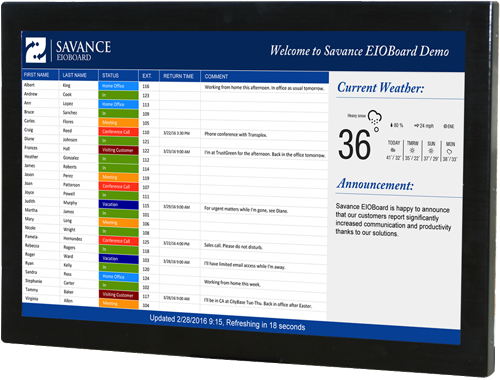 |
Large Screen Display and Small PC
With our Kiosk large screen displays you can have EIOBoard running in your lobby or entrance. On the large screen Kiosk screen you can show an entire buildings status, scrolling marquees, color coded statuses, display user information, and much more. The Large Screen Display will interact with all of EIOBoards products. When guests visit your company they can instantly see if the person they are there to see is in our out, and sign in as a guest alerting the person they have a guest in the lobby.
Finger and Card Readers
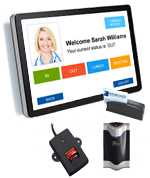 |
Fingerprint & Card Readers
With our fingerprint and card readers, users have a quick and easy way to update their status anywhere in the building. An organization can choose to not allow its users to log in via the keypad, instead requiring them to log in via one of the external options such as a biometric fingerprint scanner or card readers. An organization can also force the users to enter a pin after they enter their ID. This could help prevent users from marking in their co-workers.
Door Control
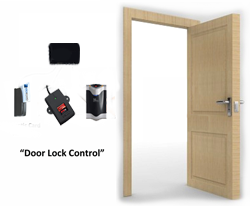 |
Door Control
The door control feature can be used in various ways; keep areas secure, keep track of users around the building, or allows users to update their status when in or out. The key to a successful in/out board implementation is accuracy. What better way to keep it accurate without breaking your budget. In addition, you can leverage and tap into an existing HID reader as long as it supports Weigand. To do this, you just need to order a splitter or a Wiegand OEM module with door control from Savance. The system supports the same devices as the Kiosk - the HID card reader, fingerprint reader, magnetic card reader, and barcode scanner.